
Review: Blender 3D – PC Nero Slim Line Keyboard by Logickeyboard

Review: Blender 3D – PC Nero Slim Line Keyboard by Logickeyboard
I recently received the Logickeyboard for Blender and used it for about four weeks, both for Blender and regular office work.
It is produced by the Danish company Logickeyboard, which creates keyboards for a plethora of other creative apps like Maya, Cinema4D, After Effects, Photoshop, and many more.
I thought that it was interesting to hear that the Logickeyboard for Blender is their first product made for open-source software—a sure sign of Blender’s adoption in the creative ecosystem.
The Logickeyboard for Blender sells for Eur 129 excluding VAT (roughly USD 150). Worldwide shipping is available but it can be costly outside the EU/US. In this case it’s better to find a local reseller and request the product there.
The keyboard is designed for Blender 2.83 but as far as I know, no major shortcuts have changed since 2.90. If they have, please let a comment and I’ll pass that on. Replacement keycap sets will be made available on major changes.
Note: the product links in this review are affiliate links and I will receive a percentage of any sale. However, I was not aware of their affiliate program while writing this review – Logickeyboard only offered me when it was finished so you this is my unbiased review.
Technical specifications
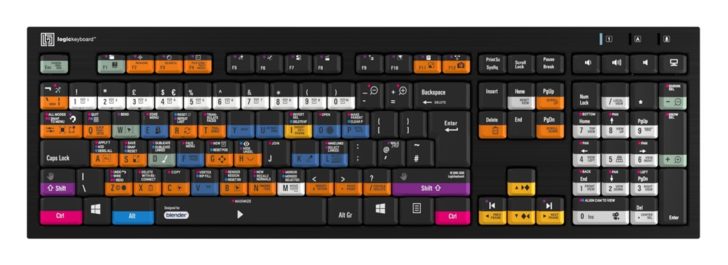
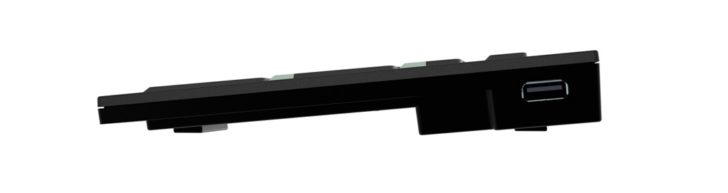
Let’s start with an overview of the specifications. The keyboard itself is simple and decent: with 105 keys (for the ISO version), a wired USB connection, 2 built-in USB hubs and adjustable height, it has everything you expect from a keyboard.
The keys use ‘enhanced’ scissor switches, and have been tested for 10 million keystrokes per key.
It is fully Compatible with Windows 7-10. It WILL work on a Mac (I used it with my Macbook), but you may want to remap the CTRL and CMD keys if that’s how you end up using it.
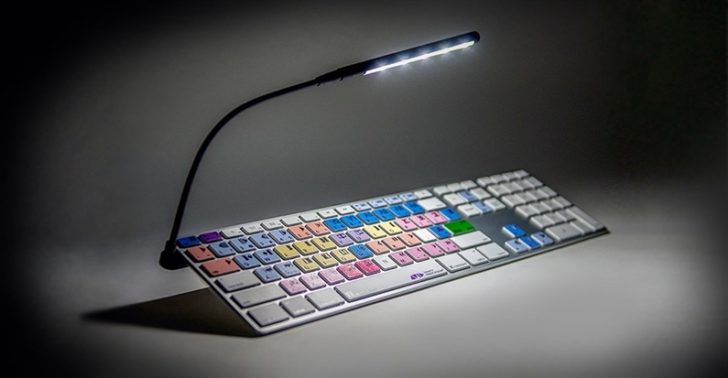
Many artists like to work in a darker environment, so being able to see your keyboard is important, especially for this model. Since the keyboard is not back-lit, it instead comes with the LogicLight™ v2 USB LED light. My order did not include this light, so I cannot comment on it.
Typing experience
The keys have a rather short travel and are not very loud. I found it very comfortable for ‘fast’ work like Blender, and not tiring to use for a longer period of time, and it will work fine for light office work.
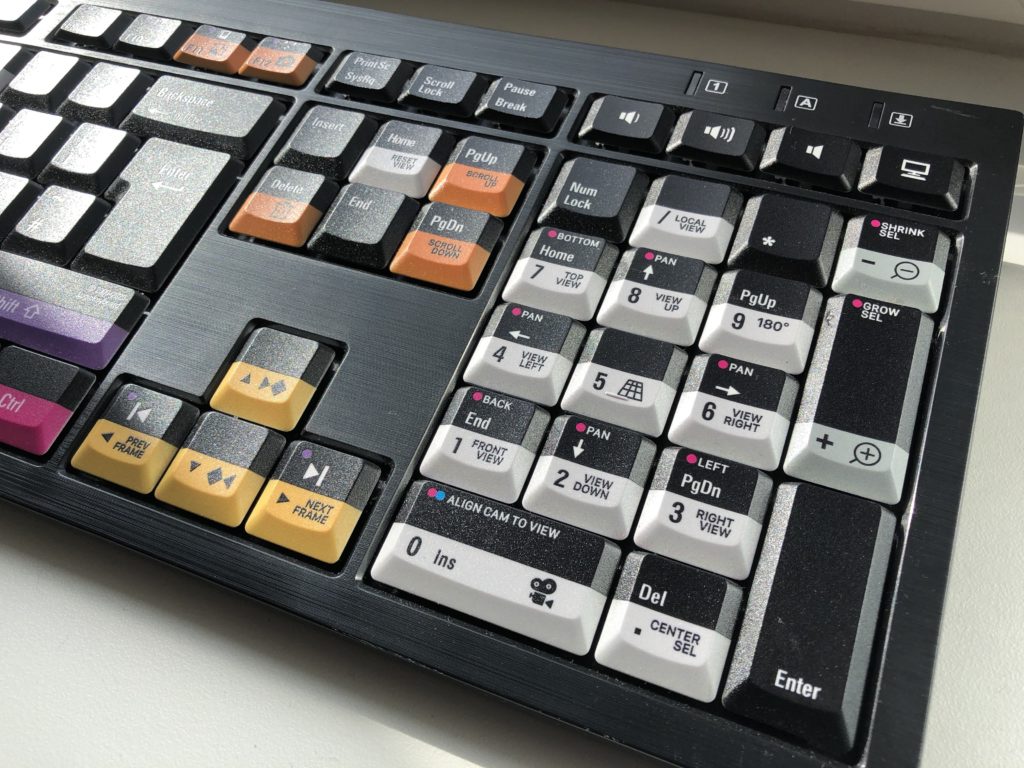
Blender use
Of course, this is where the real meat of this review is. And I have a confession to make: I only recently started learning Blender 2.8 by working through tutorials at lunch. This turned out to be a perfect way to test this keyboard as most hotkeys were not part of my muscle-memory yet.
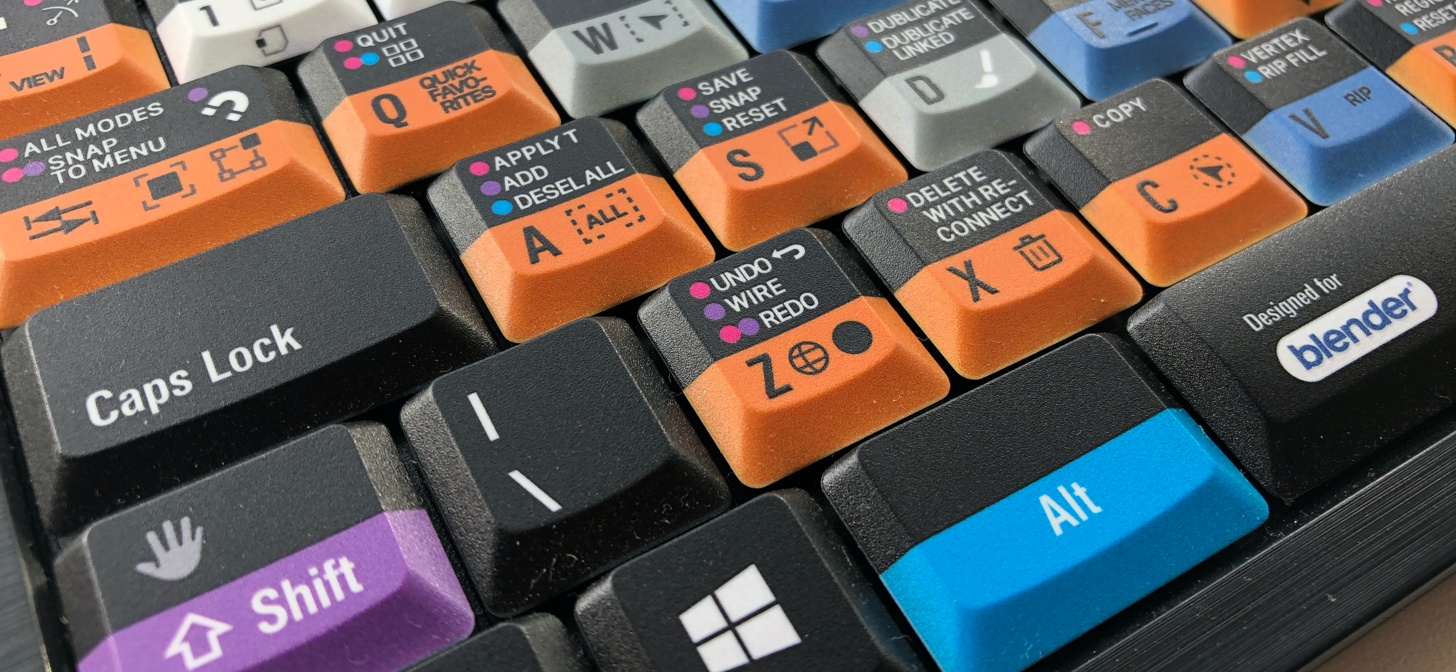
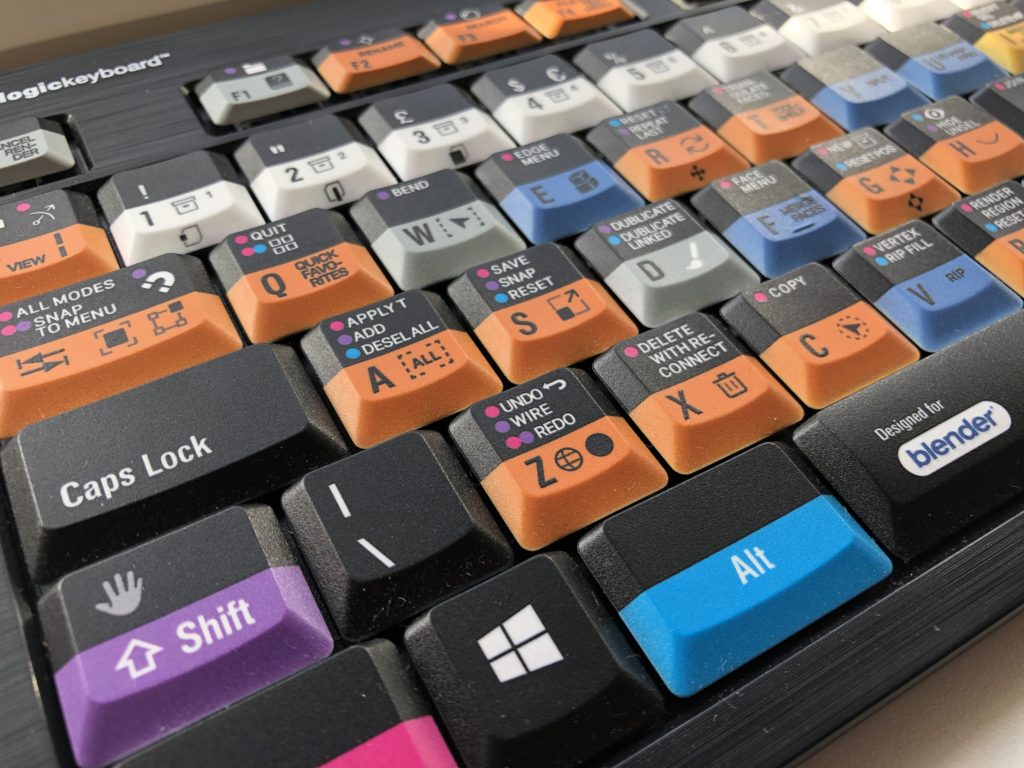
The icons match the icons in Blender and color coding helps understand which modifier keys you need. It took me a little while to figure out the color coding but, once I did, having the functions visible on the keyboard was a real help and it boosted my renewed learning process. You’d need to learn the meaning of some icons too, so using the keyboard goes hand in hand with learning Blender.
And by now I can hear you think, ‘but what happens if Blender’s hotkeys change?’. Fortunately it’s rare for more than a handful of keys to change, so Logickeyboard offers keycap update sets for software updates. These haven’t been necessary for their Blender keyboard yet.
Closing thoughts
I did miss a few specific hotkeys that I tend to use often. While the keyboard has volume up/down and mute keys, there are no other media keys to control your media player (play/pause/next), or to adjust the brightness of your screen. As I still had my Macbook close at hand that was ok, but if this is your main keyboard, it’s something to think about.
The Verdict
Pros
- The color coding is a great help when learning Blender.
- I enjoyed the short key travel for creative work.
Cons
- You’ll have to order replacement key caps when Blender changes hotkeys.
- I personally prefer wireless keyboards to keep my desk clean.
Conclusion
The Logickeyboard for Blender is a great investment when you’re learning Blender. The color-coded hotkeys really helped speed up my learning process and the keyboard is comfortable to work with.
If you’re already a Blender pro, you won’t be needing the reminders for the basic shortcuts anymore, but this may still be useful for the more exotic or less frequently used Blender features.


This is really cool–and if I didn’t have a back-lit super cool gaming keyboard . . . I’d want one. I still want one. I just don’t see myself using it.
Great review.
Priced at 129,90€, which is ca. 500 zloties, it’s not among the cheapest. Still, it’s a great news B3D joined other such apps. BTW, I couldn’t find the keyboard for 3DS Max on their site, which is telling. The only thing that is missing is the info which Blender version these shortcuts are for.
This keyboard was designed for 2.83, but I believe no major shortcuts have changed in 2.90? If they have we should let Logickeyboard know.
In a nutshell, this special keyboard costs an ordinary keyboard plus several high quality add-ons.
And is only good for people who use predetermined shortcuts and don’t care to customise them further.
Just saying.
Also, when you have to switch to, say, Photoshop mid-work, do you need to switch to the Photoshop keyboard, too?
Because that sounds like fun. :-)
Windows key must be SUPER key!
Pity those keys could not be the Blender logo :(
Windows key must be Linux key :(
I guess this keyboard will work on GNU/Linux distributions as it seems pretty much standard. Just another tool to put on my wanted list, XD.
Yes I can confirm that it worked fine on my Thinkpad X230 with Pop!_OS
It’s not mechanical or back lit, so it’s a no for me. I think the visual design of the keys would look great on a key cap set for existing standard cherry switch keyboards though!
What happens if Blender changes their shortcut? Is there a modular way to update.
Replacement keycap sets will be made available on major changes.
I don’t know if a device like that will help or ultimately hurt someone trying to learn blender. I think a better idea might be to just print the shortcuts and place them in eyesight of your screen so you don’t have to look down, it is much cheaper and is infinitely better. It’s a cool gimmick for blender users, and I think this is fine but I also think that you will quickly outgrow a device like this.
Under normal circumstances, I’d agree with you. I too prefer printed cheat sheets. However, various industries such as video & sound editors have used rubber overlays for decades and to excellent effect. This is just a logical extension of that concept.
Having said that, I thought pretty hard before opting to not buy this keyboard. My decision came down to a few factors:
1. I’m currently using a Cherry MX Green mechanical and scissor switches just feel terrible.
2. Scissor switches don’t take a beating and tend to break.
3. The Amazon reviews for this company’s other keyboards are less than inspiring. They confirm my suspicion about this thing being as cheaply constructed as it looks.
4. For what you’re getting, it’s overpriced. You an get a far superior Ducky One or Cooler Master mechanical for 50%-75% of the price.
I appreciate the idea of a “cheat sheet” keyboard, but would much rather buy Blender related Cherry MX keycaps instead. In a pinch, I’d even take a $7 pack of vinyl Blender keycap stickers.
Wish I had the money just to have one mounted on the wall as a piece of art :D
Is ‘DUBLICATE’ on the D-Key meant to say ‘DUPLICATE’ ?
LOL ya it’s spelled DUPLICATE! That’s funny, can anyone confirm if the final is also misspelled?
Umm isn’t this much better suited to keycaps or keyboard stickers than a whole keyboard? After all, it has no additional functionality as one, besides having hotkeys printed on it, something both of the above can do for MUCH cheaper, AND you can still keep using your keyboard of choice. It would also be way easier to change stickers and keycaps as blender changes hotkeys/introduces new ones than it would be to order new keys.
The idea is neat though, it would certainly help people who don’t want to keep a printout of blender hotkeys, and I think it could be useful to make such keyboards / KB covers / KB keycaps / KB stickers / whatever for other software too.
Even more useful would be one where you get to write the hotkeys on, with a marker or something, so you can rebind your hotkeys and still have them relevant, or use them for other software, as I mentioned above.
Is it for each version to buy a new Keyboard?