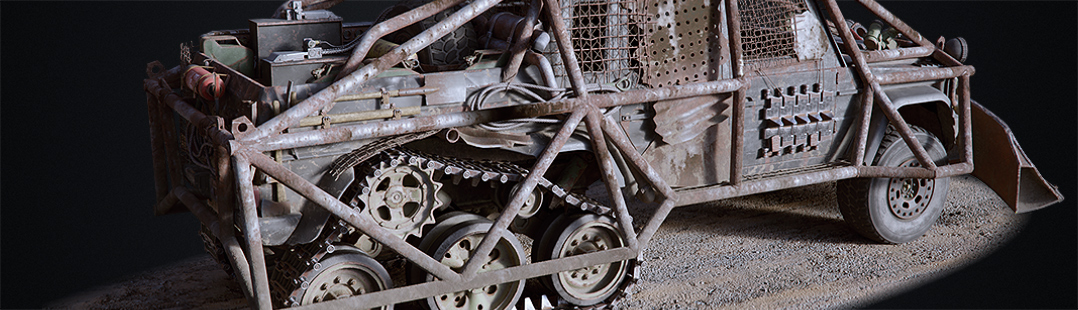

Spin modeling in Blender 2.5

 In his latest videotutorial, Adam Kidd goes into the details of spin modeling in Blender 2.5
Here is another great helper video, Officially it is just about spinning, but I throw a little textured in there too!
I hope the science fans get a kick out of my intro!!
Link



Do you wanna sell my down the river??!
This is only complicated!
For a glas take this: http://www.blendermagz.com/2009/04/14/blender-3d-lathe-modeling-wine-glass/
(btw. in Maya it’s a few clicks only!! I wanna have such functionality in Blender!! PLEASE!!!)
nice :D
Why did he subdivide the cube before merging the vertecies?
And, why did he have to zoom in so far to move a vertex to the origin? Why not Shift-S, selection to grid?
Personally, I start out with a plane, delete all but one vertex (though the idea of just selecting them and merging them is a clever way to shorten it, I’ll use that from now on), snap it to grid, and extrude it from there. Then go to top view (numpad 7), hit ‘spin’, and I’m done.
Note: If you want a vertex flush against an axis, but you don’t want it at a grid-point, you can put your 3D cursor at the origin, make your scale/rotation/translation pivot your cursor (that funny looking menu-button directly to the right of the shading method (wireframe, OpenGL, textured)), you can scale (s-key), then while scaling, press either X, Y, or Z, depending. If you want all your vertecies to go to the X axis, then you can scale on either the Y or Z axis, depending on how you want them to line up… Then press ‘0’ while scaling. If you’re looking top-down, so your X and Y axis are visible, and you want to have a line of vertecies that follow the X axis, you can scale on the Y axis so they all move on Y, towards X on 0.
Another thing you can do is press the ‘N’ key to bring up the translation panel on the right side of the 3D viewport, click on the axis you want them to MOVE on, and make it “0”.
The explanation is long, but in practice, it takes only a few keystrokes and is remarkably fast. No fiddling with menus either.
Meh, I’ll just make a video tutorial for it…
Edit: Once it finishes processing, here it is: http://www.youtube.com/watch?v=-C-0mBt7M38
It’s low quality… You can email me ([email protected]), and I’ll send the raw ogv file. VLC or any Linux player should play it.
Edit 2: Meh, it’s not as low quality as I thought.
What I really like with Blender is that it give anybody a chance to produce tutorial…
I mean anybody…
Tynach: yeah, your way is the old Blender way, shortcuts, drag areas or roll wheel, think how to get to the result fast. The new way is lots of menus, aim with care at the scrollbars and any other slow method possible. His tutorial can be fine as introduction, but yours’ better at demoing how to work fast. I hope the people go beyond the new interface, because otherwise they’ll wonder what thruth were in “Blender is fast to use” that many old users repeated over and over.
@pixnolve :)
Isn’t there a way to “do smooth lathe objects” with the array-modifier?
Poken: My way also allows more accuracy, without having a vertex “close enough” to the origin or axis. Hence, it’s faster, in my mind easier, more accurate, and… Well, better.
However, it was cool to see in his video that you can control the output and what axis the spin is done on numerically. That is something I did not know.
I think I’m still going to stick with the old Blender way… I’ve CONVERTED Maya users (who hated Blender before) back to Blender because you could work faster and easier (once you get over initial “WHAT THE-” at the interface).
Yet, I can still use 2.5 series just fine. It DOES render faster, and has some nifty new features (smoke, volumetrics). And the Interface is more customizable now… I just find it a pain to move all my frequently used shortcuts back. Ctrl-X, instead of the new Ctrl-N… N is too far away from the left side of the keyboard, where my hand always is. I liked X because I could press it quickly. I often experiment with tiny projects then immediately delete them or start over, so it’s a shortcut I use often. And, now I have to map Ctrl-. to C. I always am repositioning the 3D cursor, just to get the perfectly centered view. It’s one of the things I use the 3D cursor for most often.
Now, if only I could get myself to actually FINISH any of my projects I start in Blender…
You can also Ctrl+Click to add vertices when editing a mesh (and having no selection). And you can use the right toolbar (N-key by default) to set the exact vertex’s position. In the same toolbar you can also define the 3D cursor’s position for rotation (if its not the center).
A problem i always had with the previous interface in Blender (and is solved in 2.5) is that i couldn’t see the numbers behind the mesh in an easily accessible and consistent way. In 2.5 i just press N and the numbers are in my face, to modify (or just view) them as i wish.
2.5 alf? Please, don’t make a sequel to Alf.
404 Not Found