In inkscape, you can also simplify path or reduce vector points by pressing Ctrl+L. Works really well and keeps with the original shape. By the way, i have used the trace bitmap function in other (commercial) apps. and I still think inkscape’s is better.
I’ve used the Live Trace feature in Illustrator before, it’s very “nice”. I never knew that Inkscape could do that too. I think I’ll stick with Illustrator though since I shelled out the big bucks for it, lol….
I had used WinTopo before to extrude building walls from blueprints, but with poor results. I had never installed Inkscape. Now it is done, and it will be very useful !
I often use the tracing function in inkscape for my 2D print work. It does an excellent job. Just recently I’ve started importing SVGs into blender and aside from the object centers not being in the center of the curves it imports seamlessly. I’ve had much better success importing SVGs into blender than other vector formats.
Chris, you’re doing an awesome job. Aside from being wildly entertaining (if you’re into Blender) you’re focusing on features a step or two past “This is how we make a cube”. And they’re nugget sized. You’re a treasure. Keep it up.
Nice… I had just finished tracing a logo (two, actually) in Blender the hard way when I took a break, hopped on BN and found this. You can imagine how I felt at first.
Though I’m thinking that’s the other “BlenderNation Effect:” just when you wonder how to do something, along comes BN with another tutorial. It’s like they’re in my head… 8^(
Eh, get good with the pen tool in Illustrator and your fine. It’s like trying to understand human form without knowing how to draw. You miss a lot. AAFTER wards then use the auto tracing
Is there a way of taking a complicated photograph (human face?), applying varying levels of saturation (to give many photos with only very specific shades of grey turned black on a solid white background), and then importing all of these photos (onto different layers) in blender, giving a detailed 2 dimensional portrait? Given 2 photos (front and side), it would be possible (although a bit of work) to create a nice 3d model this way. Is it possible?
Cool to see this here!
I’ve been using this quite a bit lately for taking rasters (even very ugly rasters) and making nice SVGs to use on a vinyl cutter or laser cutter/engraver. The results are very very nice.
I’ve also just used the import to blender to make modeling from concept art much easier, I foresee doing it much more often as well…
Inkscapes autotrace is great and I’ve used it a lot. However, for some circumstances (perhaps with some more complex tracings), the following free online, interactive tracer works a bit better.
No, it’s a USB-powered Canon Canoscan LiDE80 scanner. Hence the black USB cable plugged into the back. The button on the front autofires by default a program called Arcsoft Photostudio or Arcsoft Photobase, which uses TWAIN to capture the image. All at the touch of one button. (i have that same scanner – and have even used it for stuff like this before)
I don’t know if anyone realizes just how worried I am before the movie goes up. I have no idea if I’ve selected the ‘right topic’ and I spend a considerable amount of time trying to guess just what would be the best thing to do next.
I’m hearing many people ask how I make these movies. I thought that I’d keep that for a later time when I’ve covered a broader spectrum and gotten into a routine.
I spoke to Bart about covering some beginners topics so that I would have time to research for the ‘Behind the UI’ movies. We’ll see.
@Cyrr
Schedule? There isn’t really one. I was given the term of ‘regularish’ And I’m holding BN to it ;)
Fantastic. I’d given up on autotracing, except for over-complicated looks-nothing-like-the-original effects.
Can’t afford Illustrator, but hey, with all these open source tools, who needs it. Or wants it. You just don’t get the same gratitude filters with pay-through-the-nose bloatware.
the penny dropped! thanks Chris, this has started a whole new development work flow. Tie this into live trace in Illustrator or just any design work and away we go.
I think when Chris says, “thanks, Peter,” I think he means Peter Selinger, the guy who wrote Potrace. You see, the basic tracing engine of Inkscape -is- Potrace. I wrote the code to embed Potrace in Inkscape, and added a few filters (brightness, Canny edge detection, quantization, multiscan, etc), and with the help of others, glued it to Inkscape and added a GUI.
But still, all of the smarts are in Peter’s Potrace code. I have always been amazed how such a small program with such a simple algorithm can produce such wonderful results and good fidelity with the traced image. Peter is something of a genius. In fact, one little thing I make absolutely certain of, is that we always give Peter prominent credit for his generosity. He’s a pretty nice guy, too. ^^
Nevermind figured it out. You got to click on the picture that you want to trace as well. He seems to skip this step in the tutorial. That and he goes the a bullet through it. Took me 3 views to figure out that he started with Gimp.
This is a great reference, well scripted – concise and to the point. In short: a perfect tutorial. I remember watching this video years ago – and now, it’s still the best (I like you Gaussian blur trick btw – very clever). Thank you.

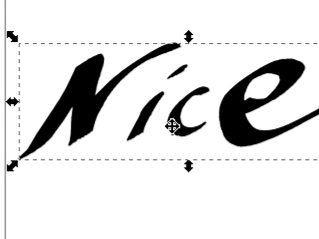 What? Are you still tracing your bitmaps?!


Nice!
Seriously, that is pretty handy. :)
What can I say but…Nice!
I knew Inkscape could trace bitmaps but I had never thought about importing them into blender like that. Great idea.
I read about that raster to vector converter a while ago and was over joyed to find out it was in Inkscape.
what screen capturing software is he using?!
Great tut by the way!
The cheesyness is high with that one!!
I love these videos.
great – many thanks.
Great + lithographically nice!!
Two questions:
1. How can you trace stuff in 3d (meaning both front and side…) automatically ?
2. What was that feature Chris used to smooth the lower part of the n in nice?
Another entertaining and educational video. Someday you have to release a video about making one of these videos.
@shul: about your 2. question he simply removed the vertices (bezier points) in the middle of the curve.
@musk: how ? SVG is translated into bezier ?
Definitely… nice! :-) Thanks for sharing.
Thorsten
In inkscape, you can also simplify path or reduce vector points by pressing Ctrl+L. Works really well and keeps with the original shape. By the way, i have used the trace bitmap function in other (commercial) apps. and I still think inkscape’s is better.
Jayjomofro, it depends. Illustrator often gave me better results than inkscape, sometimes it was useless though…
thanks man for sharing with us…..
@shul -> the featur is calld erase :)
Thanks Chris – seams you are really keeping your schedule.
Is there an archiv where all these videos will be in one place to easy access?
@Cyrr: they’re all labeled ‘BNTV’, so you can use the archive:
http://www.blendernation.com/category/bntv/
you can also reduce the vertices automatically in inkscape. Under Path->Simplify (Ctrl+L).
I like this kind of videos. Short, to the point and entertaining.
WTF
NO WINDOWS XP !!!!!!!!!!
I’ve used the Live Trace feature in Illustrator before, it’s very “nice”. I never knew that Inkscape could do that too. I think I’ll stick with Illustrator though since I shelled out the big bucks for it, lol….
Thanks a lot for the Tutorial !
I had used WinTopo before to extrude building walls from blueprints, but with poor results. I had never installed Inkscape. Now it is done, and it will be very useful !
Wait a momento
after all i always had this since i have Inkscape !
So this is a Inkscape plugin.
It´s very coool and useful
Thanks Peter
Nice :)
Hi,
WOW man thanks very much I really was looking for some tool that can do for my concepts, very good information hop more to come. :)
Oh, Chris, where would we be without you? Great article/video.
I often use the tracing function in inkscape for my 2D print work. It does an excellent job. Just recently I’ve started importing SVGs into blender and aside from the object centers not being in the center of the curves it imports seamlessly. I’ve had much better success importing SVGs into blender than other vector formats.
Chris, you’re doing an awesome job. Aside from being wildly entertaining (if you’re into Blender) you’re focusing on features a step or two past “This is how we make a cube”. And they’re nugget sized. You’re a treasure. Keep it up.
Nice… I had just finished tracing a logo (two, actually) in Blender the hard way when I took a break, hopped on BN and found this. You can imagine how I felt at first.
Though I’m thinking that’s the other “BlenderNation Effect:” just when you wonder how to do something, along comes BN with another tutorial. It’s like they’re in my head… 8^(
He is a great choice for representing blender,he have style.
Chris bring us more.
Great job Chris, this is the second time I see your informative movie, with so much information and fun!
I love watching it!
More! I really enjoy the videos, seriously ;)
xD Cool!
Eh, get good with the pen tool in Illustrator and your fine. It’s like trying to understand human form without knowing how to draw. You miss a lot. AAFTER wards then use the auto tracing
@Master Danix: It’s OpenSource, what better way to use software.
IS is even for Windows.
http://www.inkscape.org/download/?lang=en
Say, is that a self-powering bluetooth scanner?
This guy is funny…
Is there a way of taking a complicated photograph (human face?), applying varying levels of saturation (to give many photos with only very specific shades of grey turned black on a solid white background), and then importing all of these photos (onto different layers) in blender, giving a detailed 2 dimensional portrait? Given 2 photos (front and side), it would be possible (although a bit of work) to create a nice 3d model this way. Is it possible?
Bob
You can also use PoTrace without InkScape (In case people dont know and since it was not mentioned)
You can find it here: http://potrace.sourceforge.net/
Another good one is also AutoTrace which is also FREE and can be found here:
http://potrace.sourceforge.net/
Whoops AutoTrace is here: http://autotrace.sourceforge.net/
Cool to see this here!
I’ve been using this quite a bit lately for taking rasters (even very ugly rasters) and making nice SVGs to use on a vinyl cutter or laser cutter/engraver. The results are very very nice.
I’ve also just used the import to blender to make modeling from concept art much easier, I foresee doing it much more often as well…
Inkscapes autotrace is great and I’ve used it a lot. However, for some circumstances (perhaps with some more complex tracings), the following free online, interactive tracer works a bit better.
http://vectormagic.com/
Hm, vectormagic only gives you two free downloads now. I’d stick with Inkscape.
“Say, is that a self-powering bluetooth scanner?”
No, it’s a USB-powered Canon Canoscan LiDE80 scanner. Hence the black USB cable plugged into the back. The button on the front autofires by default a program called Arcsoft Photostudio or Arcsoft Photobase, which uses TWAIN to capture the image. All at the touch of one button. (i have that same scanner – and have even used it for stuff like this before)
I don’t know if anyone realizes just how worried I am before the movie goes up. I have no idea if I’ve selected the ‘right topic’ and I spend a considerable amount of time trying to guess just what would be the best thing to do next.
I’m hearing many people ask how I make these movies. I thought that I’d keep that for a later time when I’ve covered a broader spectrum and gotten into a routine.
I spoke to Bart about covering some beginners topics so that I would have time to research for the ‘Behind the UI’ movies. We’ll see.
@Cyrr
Schedule? There isn’t really one. I was given the term of ‘regularish’ And I’m holding BN to it ;)
@DramaKing
probably still tracing things. ;)
@Tallguy
Thanks.
Fantastic. I’d given up on autotracing, except for over-complicated looks-nothing-like-the-original effects.
Can’t afford Illustrator, but hey, with all these open source tools, who needs it. Or wants it. You just don’t get the same gratitude filters with pay-through-the-nose bloatware.
I’m not sure the exactly where it is, but there is a Path > Simplify in inkscape that will cut down those pesky vertices quite nicely.
GREATE JOB CHRIS!!!
Oh thanks for this great job!!! Now will be easier. ^^.
Beau boulot !
Un grand merci.
Pierre
the penny dropped! thanks Chris, this has started a whole new development work flow. Tie this into live trace in Illustrator or just any design work and away we go.
Really Major step…Cheers
Thanks for this nice tutorial. Whew…just in time for my latest project too! You’re a funny guy :)
@LL,
I think when Chris says, “thanks, Peter,” I think he means Peter Selinger, the guy who wrote Potrace. You see, the basic tracing engine of Inkscape -is- Potrace. I wrote the code to embed Potrace in Inkscape, and added a few filters (brightness, Canny edge detection, quantization, multiscan, etc), and with the help of others, glued it to Inkscape and added a GUI.
But still, all of the smarts are in Peter’s Potrace code. I have always been amazed how such a small program with such a simple algorithm can produce such wonderful results and good fidelity with the traced image. Peter is something of a genius. In fact, one little thing I make absolutely certain of, is that we always give Peter prominent credit for his generosity. He’s a pretty nice guy, too. ^^
Why to blender though? is it to be used in another project? Isn’t inkscape good enough for cleaning up and using your tracing?
I miss chris.
Tried this, but the trace in inkscape doesn’t seem to be working.
Any help?
Nevermind figured it out. You got to click on the picture that you want to trace as well. He seems to skip this step in the tutorial. That and he goes the a bullet through it. Took me 3 views to figure out that he started with Gimp.
This is a great reference, well scripted – concise and to the point. In short: a perfect tutorial. I remember watching this video years ago – and now, it’s still the best (I like you Gaussian blur trick btw – very clever). Thank you.